What working with Decker as a beginner was like
I really enjoy what I can only describe as lo-fi game engines. Bitsy is a prime example of this. I love being able to create micro-games and miniature experiences through tiny engines that have limitations that allow creative expression.
So, when I found out about Decker, I knew I had to give it a try. I fell in love with the retro aesthetic that reminded me of old Windows apps, and the fact that it felt less like a traditional game engine and more like a digital toy. Everything about it encourages experimentation.
The result was A Date with a T-Rex <3, a silly point-and-click game where the player goes on a first date with Rex, a quirky dino with unknown standards.

Learning the Basics
Developing in Decker is a very different experience compared to other game engines. Decker advertises itself as a multimedia sketchpad and creative tool, rather than a game engine. In my experience, creating in Decker is more similar to creating a fancy PowerPoint presentation. Like Bitsy, it uses a low-code approach, but it can also be used for much more than simple games and zines.
Luckily, Decker comes with several tutorial projects that help explain things such as adding dialogue, animations, and transitions. There are also example projects that show just how versatile Decker is as a creative tool. I also found this fantastic guide on itchio explaining the basics!
Understanding Decker became much easier once I understood how projects are organized:
- deck - the base project, a collection of cards
- card - similar to a scene, this is where you can add sprites, UI, and scripts
- widget - placed on cards. May be a button, a text field, a canvas, etc.
- canvas - can be a literal canvas to draw on, but also can be used to show sprites
- text field - can be used for user input, but also for storing dialogue text more creatively. It can also be used to store string variables.
- button - a basic button that can also be converted into a checkbox, which is useful for storing booleans
- contraption - custom widgets made up from a combination of existing widgets and scripting
A deck, a card, and a widget can all have scripts attached to them. Deck scripts were mostly global, where card and widget scripts could reference functions declared there. Meanwhile, card and widget scripts functioned more local in scope. Once I understood those fundamentals, I started experimenting with the features I wanted for my game.



Adding Animations
This was one of the first things I tried figuring out how to do, and it proved to be the first real challenge I would experience with Decker. Decker has a sample deck explaining animations (or puppets, in Decker's case). However, what wasn't clear to me at first was how to set up puppets.
To create a puppet, I first had to make what is essentially a character sheet on a separate card. Each expression or pose is stored in its own canvas widget with a unique name. When spawning a puppet, Decker references both the card containing the character sheet and the name of the specific canvas widget to display. This is the first point where I learned how versatile widgets and cards are.
pt.command[deck
 "!show rex happy centerleft",
]
rex is the card name, and happy is the sprite name. centerleft is just a position indicator.
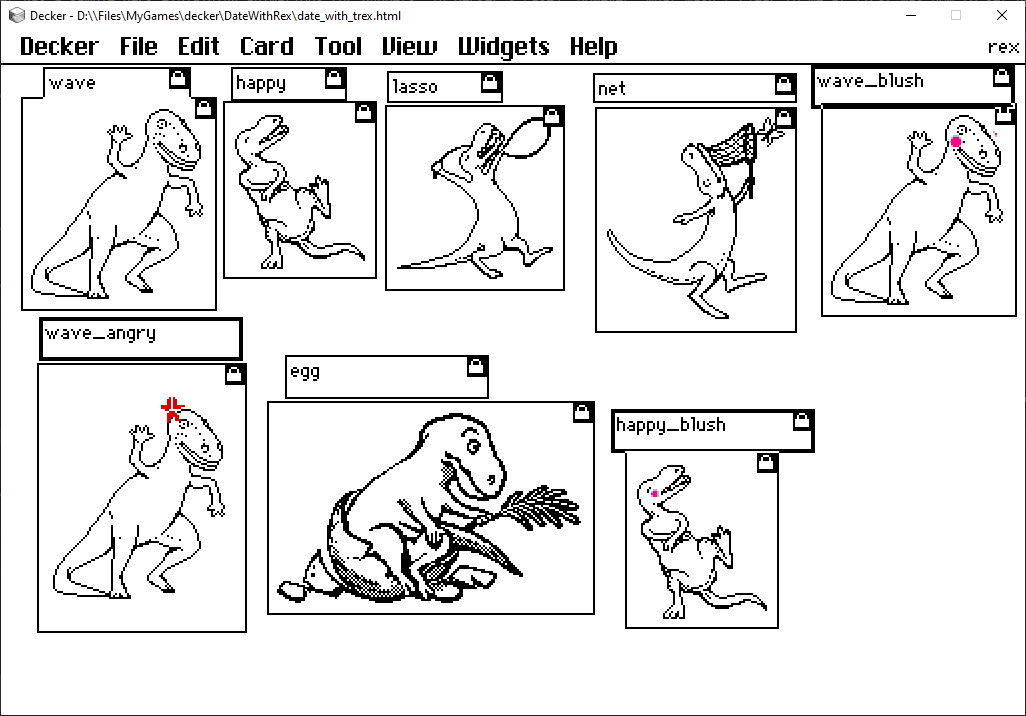
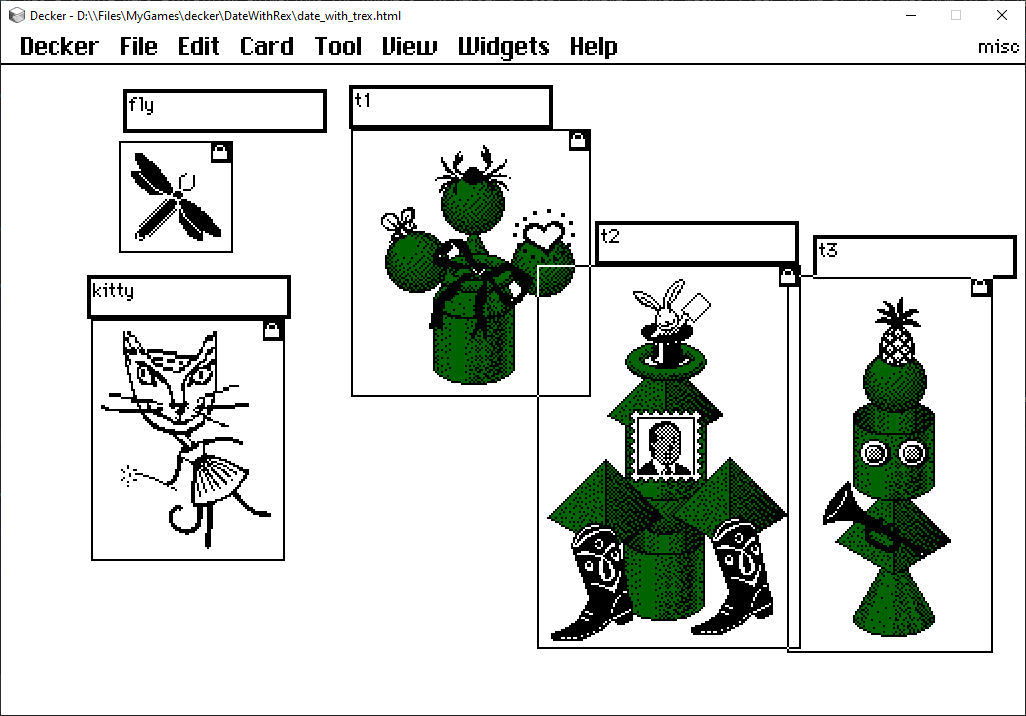
In addition to emote sprites, it's possible to add a simple animation to each: bob, breathe, shake, backforth, and spin.
pt.command[deck
 "!show rex wave centerleft",
 "!anim rex backforth"
]
Now I was able to spawn in my first animated puppet, but I soon encountered a new challenge: spawning a second puppet from the same character sheet.
Turns out this just isn't possible, due to how the card name is referenced in the show and anim commands. The workaround I found was to just add the second sprite to a new card and reference that.
pt.command[deck
 "!show rex wave centerleft",
 "!show rex2 happy centerright",
 "!anim rex backforth"
 "!anim rex2 bob"
]
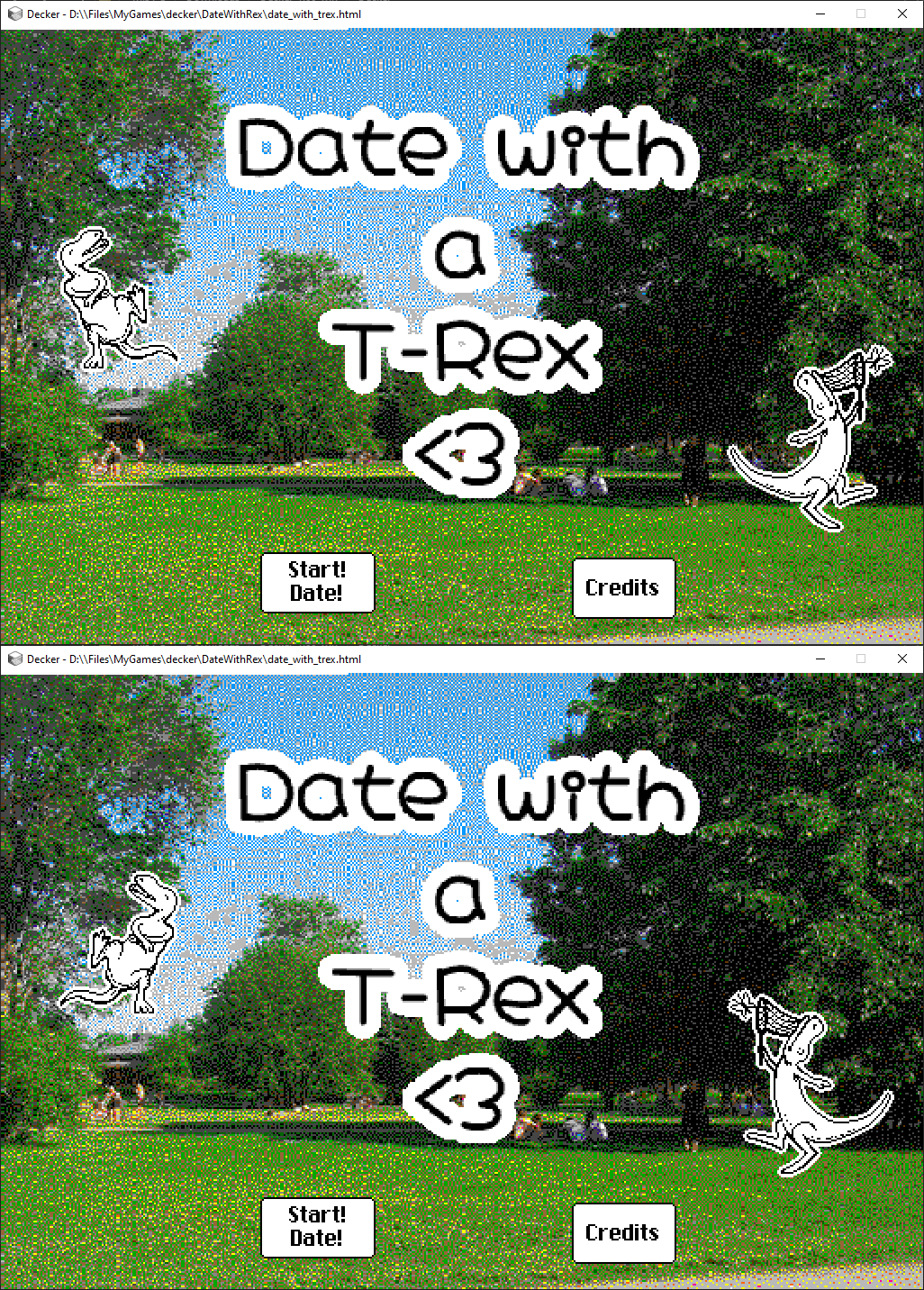
And with that, I could make this silly title page!



Adding Dialogue
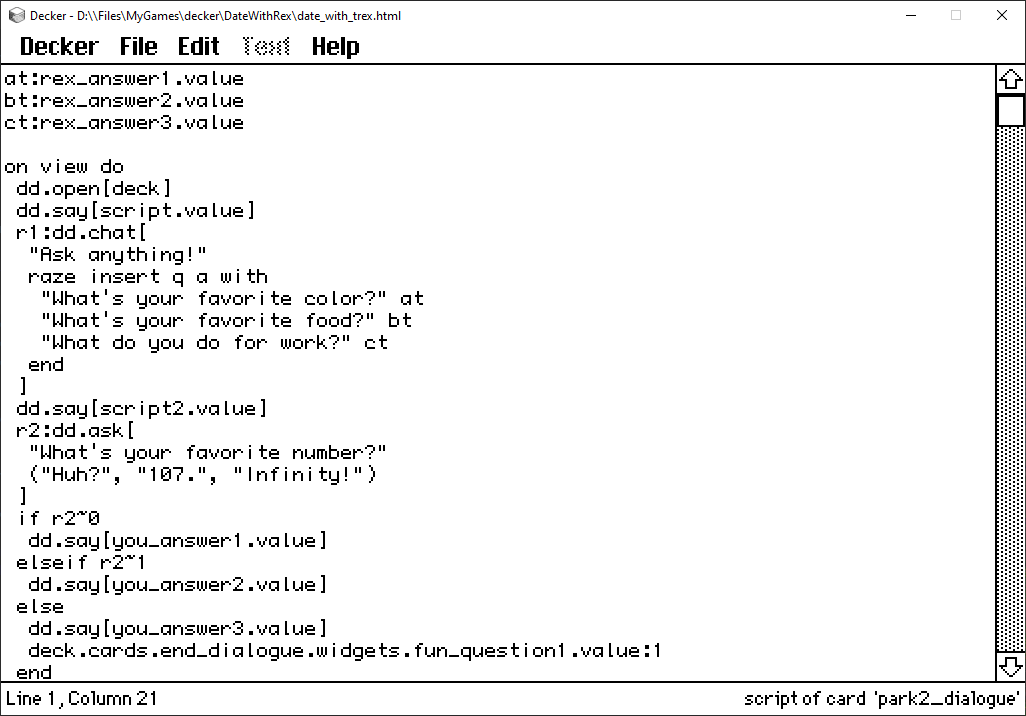
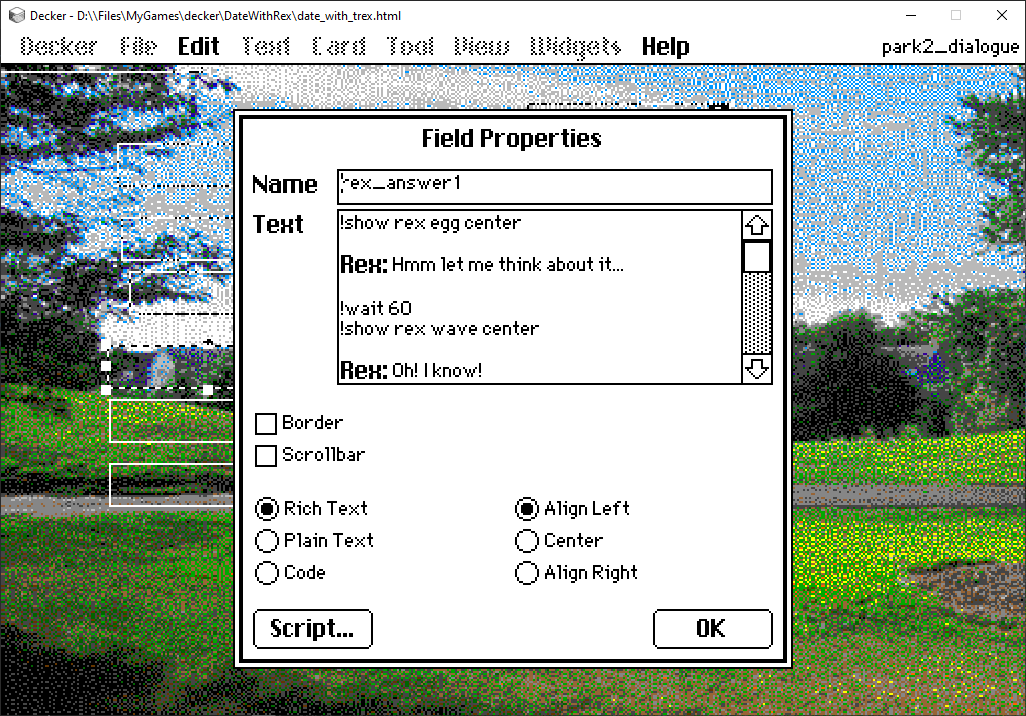
Decker has a handy Decker Dialogizer (dd) module that is easy to import to new projects, and just as easy to use! Dialogue content can either be added directly through code or read from field widgets containing text. I mostly used the latter, as it allowed for rich text and easy animation handling.
The tricky part was learning how to manage branching dialogue. Every response tied to a dialogue option must be stored in its own field widget. That means even a simple conversation tree can quickly turn into dozens of invisible widgets spread across a card. It can get messy if you aren't careful! Organizing widgets and naming them appropriately was key here. Managing the branching dialogue in code can also become very messy over time.
For example, if the user was presented with three dialogue options to select from, the code would look like this:
r1:dd.ask[
  "What's your favorite number?"
  ("Huh?", "107.", "Infinity!")
 ]
if r1~0
  dd.say[you_answer1.value]
elseif r1~1
  dd.say[you_answer2.value]
else
  dd.say[you_answer3.value]
If you had multiple sections like this in a card's dialogue, it could very quickly become a mess of response management. I'm still not sure how to manage a project of that scale without it getting overwhelming, but I'm sure I can harness Decker's scripting and widget capabilities to come up with a solution.
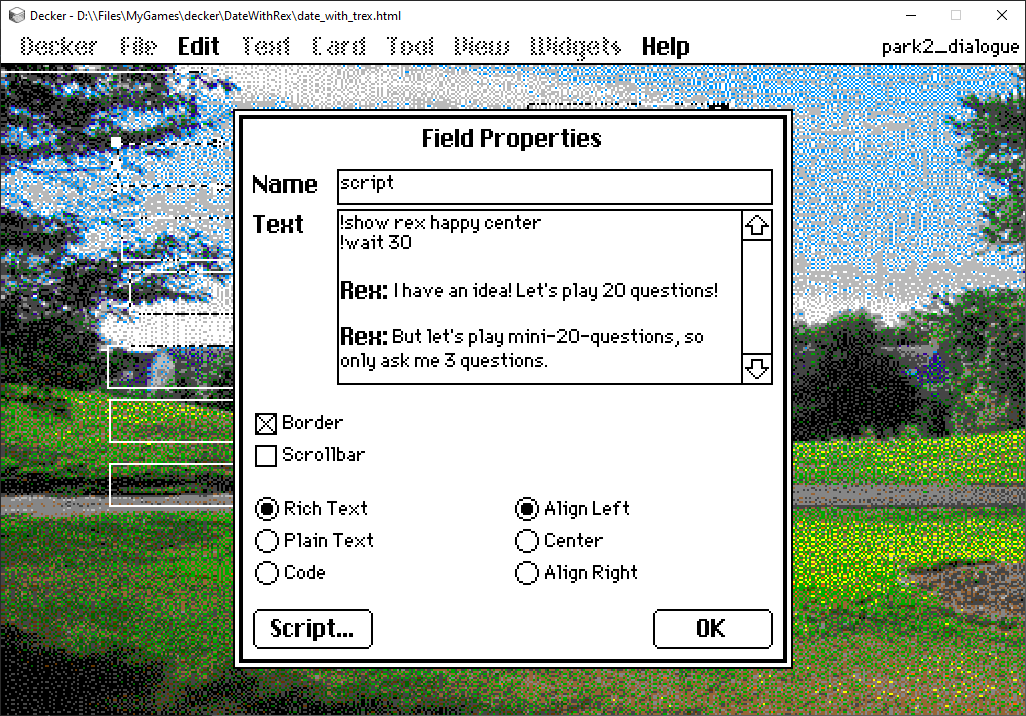
Also, a handy thing about dialogue is that you can add basic scripting functionality via the field widgets that contain the dialogue content!


Scripting in Lil
Now, this is where the real challenge of making a Decker game came in for me: the scripting. Decker uses a programming language called Lil, which is strongly influenced by both Lua and Q. Decker scripts also tend to be very event-driven, since most code is attached directly to cards or widgets rather than living in a central game loop. The syntax is compact, there are a lot of built-in commands, and examples online are relatively scarce compared to larger game engines.
But the biggest challenge wasn't necessarily the language itself - it was learning the Decker way of doing things. Many problems that I initially tried to solve with code could actually be solved through clever use of cards, widgets, or existing Decker modules. For example, you can't store a global variable on the deck script to be accessed by all cards. Instead, you have to create a widget (either a field widget for a string, or a checkbox for a bool) on a card, and then access it and modify it by doing [cardName].widgets.[widgetName].value, and now you have a global variable.
Eventually, things started to click. I learned how to manipulate widgets through scripts, store state in text fields and checkboxes, and trigger animations and dialogue through events. Once I stopped fighting the engine and started embracing its quirks, development became much smoother.
That said, I still have plenty to learn. I often got the feeling that experienced Decker creators know dozens of clever tricks that aren't immediately obvious from the documentation alone.

Handling Limitations
I encountered a handful of limitations while working with Decker.
Instinctively the first thing I wanted to do for my project was to add a simple back-and-forth rotation animation, where a sprite would switch between two angles on a loop. As it turns out, this just isn't possible in vanilla Decker, but there may be a way to create a contraption that handles it. I found a rotation contraption on the Decker community forum that adds a smooth spin rotation to images, and I think I could modify this to do what I wanted eventually.
Additionally, as I explained in the section above, handling global states can be tricky. My first instinct was to create global variables in the deck's central script that every card could access. Decker doesn't really work that way. Instead, you create widgets that act as storage. I had many variables to manage for my ending dialogue, as the ending would depend on the route and dialogue choices the user made. I ended up with many checkbox buttons on my "end" card, but I think I could have improved this by using a table.
What I Would Do Differently
Now that I have some experience with Decker, I would try doing the following:
- Spend more time getting familiar with Lil before jumping straight into scripting
- I also found out that .deck files can be opened in any basic code editor. This made figuring out Halloweener's code much easier.
- Get craftier with widgets and cards
- It wasn't until near the end of the project that I truly understood how versatile these were
- Maybe use a table to handle the many variables and states I needed for my ending management
Closing Thoughts
Being able to make something so silly for a beginner Decker project was a really great experience. It gave me the freedom to experiment and learn without having to worry about making it perfect. And people loved it! I was surprised by how many people played it and left kind comments on itch.io.
What I appreciate most about Decker is how approachable it feels. It doesn't overwhelm you with systems or force you into a particular workflow. Instead, it encourages you to play around, discover weird solutions, and gradually build an understanding of how everything fits together. And, in a lot of ways, Decker reminded me why I enjoy lo-fi tools like Bitsy in the first place. The limitations can be frustrating at times, but they also encourage creative problem-solving in a way that larger engines often don't.
As a first project, A Date with a T-Rex was intentionally small. Looking back, I'm glad it was. Keeping the scope manageable meant I could spend my time learning the engine rather than wrestling with an overly ambitious idea.
Would I use Decker again? Absolutely. There are still plenty of features I haven't explored, and I feel like I've only scratched the surface of what people are creating with it. More importantly, it reminded me why I enjoy making small games in the first place: sometimes it's fun to build something weird, learn a new tool, and see where it takes you.